


Terraform is a powerful tool for automating infrastructure deployment and management across multiple cloud providers. Whether you are new to infrastructure as code or looking to deepen your Terraform expertise, this guide will provide you with the knowledge and skills necessary to effectively manage infrastructure in your projects, regardless of the technology stack you work with. Terraform is the tool I use at work and other personal projects to get my app infrastructure onto the AWS Cloud with ease.
Infrastructure as Code (IaC)
So, you have decided to offload all your application’s infrastructure needs to the cloud. Great choice! A way better option that to click around forever to get things deployed. The next step is managing and provisioning that infrastructure efficiently, which is where Infrastructure as Code (IaC) comes in. IaC allows you to automate the creation, configuration, and management of your cloud resources using code. This approach ensures consistency, repeatability, and scalability, making infrastructure management more reliable and less error-prone.
You don’t want to be clicking through the Management Console and creating new AWS resources whenever a new environment has to be deployed. Instead, you can choose to automate the entire management process.
With IaC, you can describe your cloud infrastructure in human-readable configuration files. These files can be versioned, shared, and reused just like application code, providing a seamless and automated workflow for provisioning infrastructure across environments. Whether you need to spin up a simple web application or orchestrate a complex multi-tier architecture, IaC empowers you to define, deploy, and manage it all with ease.
And out of the available IaC tools, Terraform is the most popular one, and the most obvious choice.
Important: It’s recommended to learn Terraform only if you are well aware of how to manually create resources on AWS / Azure or Other Cloud Providers. Terraform is just a way to automate your manual operation of creating resources on the cloud. It would make a lot of sense if you are already familiar with the process so that your knowledge can help you in debugging any issues that may occur.
Introducing Terraform
Terraform is one of the most popular IaC tools available today, allowing you to manage infrastructure across multiple cloud providers with a unified syntax. Whether you’re working with AWS, Azure, Google Cloud, or on-premise infrastructure, Terraform’s declarative language enables you to define your resources and dependencies in a way that is scalable and maintainable.
In this guide (and upcoming ones), we will go through how to leverage Terraform effectively in your projects, from understanding the basics to implementing advanced practices that streamline your cloud infrastructure management. I am personally using Terraform for the FullStackHero .NET Starter Kit project too!
Installing Terraform
Let’s first get Terraform installed on your machine. Please follow the instructions over at this documentation to get it installed. I always prefer installing such tools using Chocolatey which has been a lifesaver.
If you are on Windows and want to go through the Chocolatey route, install Chocolatey by running the following commands with Administrator Privileges,
Set-ExecutionPolicy Bypass -Scope Process -Force; [System.Net.ServicePointManager]::SecurityProtocol = [System.Net.ServicePointManager]::SecurityProtocol -bor 3072; iex ((New-Object System.Net.WebClient).DownloadString('https://community.chocolatey.org/install.ps1'))Once Chocolatey is installed, let’s get Terraform installed,
choco install terraformYou can verify the installation by running terraform --version on the CLI.
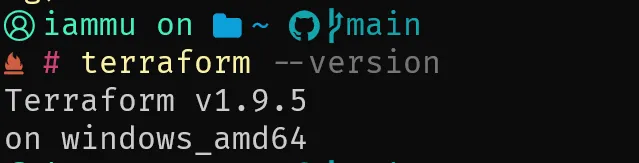
At the time of writing this article, the latest stable version available is 1.9.5.
We will be primarily using Visual Studio Code Editor to work with Terraform, as it’s the best experience for writing such scripts. That said, ensure that you have the following extensions installed to improve your developer experience.
- HashiCorp Terraform
This will give add-ons like syntax highlighting, validation, and suggestions, making it way smoother to write terraform files.
Agenda
Since this is a beginner’s guide, we will keep the scope very limited, but go through the core concepts of terraform and everything you would want to know. We will just focus on Terraform providers, variables, outputs, the necessary CLI commands to deploy, plan, and destroy, and state management (local and cloud-based). Once these core topics are covered, we will write Terraform files that can deploy an S3 Bucket and an EC2 Instance. Nothing Fancy, just to the point.
In the next article, we will dive deeper and get a .NET 8 Web API deployed to an ECS instance, along with an RDS PostgreSQL database, and all the other networking components. But first, let’s learn the basics!
Terraform Providers
Terraform Providers are like Plugins that instruct Terraform to use a particular cloud provider like AWS, Azure, GCP, etc. Please not that Multi-Cloud Architecture is also definitely possible with Terraform. But for this guide, we will keep things simple.
For instance, if you need to deploy an AWS S3 Bucket, you need to use the AWS Terraform Provider for this purpose. The AWS Provider offers a set of resources that correspond to the AWS Resources such as ECS, VPN, and everything else. There are over 200 AWS Services available as of today.
First, create a providers.tf file, and add in the following.
terraform {  required_version = "~> 1.9.5"  required_providers {    aws = {      source  = "hashicorp/aws"      version = "~> 5.64.0"    }  }}
provider "aws" {  region = "us-east-1"  default_tags {    tags = {      Environment = "staging"      Owner       = "Mukesh Murugan"      Project     = "codewithmukesh"    }  }}
In the terraform block, we will define the required version and set it to 1.9.5, which is the current latest version of terraform. Next, we will define the version of the terraform aws provider which is 5.64.0, which again is the latest available version of the aws provider.
In the provider block, we will set the region to us-east-1 and mention some default tags that will be added to every resource we create. We will be adding tags such as Environment, Owner, and Project. This instructs Terraform to use AWS as the provider and deploy the resources to the us-east-1 region.
Writing Your First S3 Bucket on Terraform
Now that we have added the provider, let’s write our first resource, which is an AWS S3 Bucket. Create a buckets.tf and add the following.
resource "aws_s3_bucket" "codewithmukesh" { bucket = "codewithmukesh-bucket"}Let’s examine this simple piece of code.
The resource name in Terraform for S3 Bucket is “aws_s3_bucket”, and the identifier of this particular resource is “codewithmukesh”. Within this resource block, we can define the supported S3 Bucket properties such as name and other configurations. You can learn about the other supported properties for this resource by visiting this link.
So this is how you would add any resource. Here are the steps.
- You decide to create Resource A.
- You should be well aware of how to create Resource A on the cloud, manually, and every nuance related to it. This experience is mandatory.
- Navigate to Terraform Docs, and search for the resource you need under the appropriate provider, which in our case is AWS.
- Make modifications based on the documentation.
No Developer or DevOps Engineer would remember (or is expected to) every resource script. Rather, the documentation is to be always treated as the single point of truth, as they are subject to changes as new versions come by. Do not try to memorize terraform resources and syntaxes, just know how to adapt them from the documentation.
If you want to learn about writing SNS-related resources on Terraform, you simply search for it in the Terraform documentation, as simple as that.
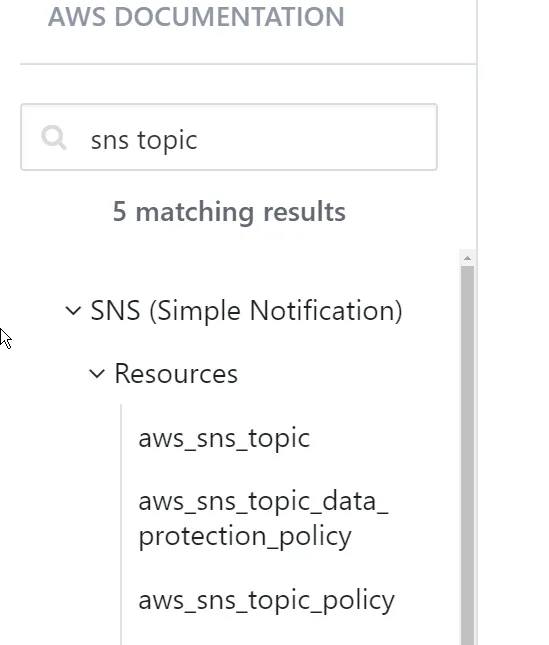
For instance, if I wanted to deploy an ECS Service via Terraform, I would refer to https://registry.terraform.io/providers/hashicorp/aws/latest/docs/resources/ecs_service.
Till now, we have written the terraform resource to get an AWS S3 Bucket deployed, but haven’t deployed it yet. Before that, we need to get familiar with Terraform CLI commands and Lifecycle.
Terraform Lifecycle & CLI Commands
Terraform follows a specific lifecycle for managing infrastructure as code. Here are the key steps and corresponding CLI commands:
terraform init
This command initializes the Terraform working directory. It downloads the necessary provider plugins, installs them locally, and prepares the project for further commands. Use this command first in a new project directory or after making changes to the provider or module configurations.
terraform plan
This command creates an execution plan, showing you what Terraform will do when you apply the changes. It compares the current state with your desired state (defined in .tf files) and lists the actions needed to reach the desired state. This is very crucial for analysis and debugging to an extent.
terraform apply
This command applies the planned changes to the infrastructure. Terraform will prompt you to approve the execution plan before proceeding with the actual changes. I tend to use terraform apply -auto-approve to skip the prompt. However, use this with caution.
terraform show
This command displays the current state or the details of the saved plan. It’s useful to review the changes after applying them.
terraform destroy
This command destroys the managed infrastructure defined in your Terraform files. It is used when you no longer need the resources.
terraform state
This set of commands is used for advanced state management tasks like moving resources, removing resources, or manipulating the state.
terraform fmt
This command formats your Terraform configuration files to a standard style.
terraform validate
This command checks whether the configuration files are syntactically valid and internally consistent.
terraform output
This command displays the values of output variables defined in the configuration. More about this in the next section.
Workflow
Thus, in a normal workflow, this is how you would get your resources deployed.
- Init the Terraform repository by running
terraform init. - Run a plan command to see what resources will be modified/added or deleted.
terraform plan. - Once you are satisfied with the results of the
plancommand, you would want to apply these changes to your actual infrastructure by running theterraform applycommand. - To destroy the resources, run the
terraform destroycommand.
Authenticate Terraform to Manage Resources in AWS
Now, there are multiple ways to ensure that Terraform is authenticated to manage the resources of AWS on your behalf. You can either modify the providers block to include the AWS Credentials (Secret Key & Access Key) or make use of the AWS CLI Profile to ensure that your development machine is authenticated.
- Via the Provider Block.
provider "aws" { region = "us-west-2" access_key = "my-access-key" secret_key = "my-secret-key"}Although this is a fairly simple approach, there are a lot of security concerns as you are now exposing the AWS Secret Key to the public. However, you can use this approach if you are just testing our things, and not necessarily pushing any of this code to a Version Control System like GitHub or GitLab.
- AWS CLI Profile
This is the recommended way to work with Terraform from your local machine. Simply configure your AWS CLI Profile with the secret key/access key and refer to the AWS Profile within the AWS Provider block in Terraform.
provider "aws" { region = "us-west-2" profile = "mukesh"}