


In this Guide, we will be building a full-fledged Chat Application With Blazor WebAssembly using Identity and SignalR from scratch. When I got started with building a Chat Component for BlazorHero, I was not able to find many resources online that covered this specific requirement to the fullest. All I could get was simple applications that just demonstrated the basic usage of SignalR in Blazor, which were not pretty looking as well.
So, I am compiling this guide to cover each and everything you would need to know while building Realtime Chat Applications with Blazor that is linked to Microsoft Identity as well. This enables us to have a one-on-one chat with the registered users in our system. You can find the entire source code of the application here.
I would also make sure that the application that we are about to build looks clean and professional. To help me with this, I will be using MudBlazor Component Library for Blazor.
Here is the list of features and topics we will be covering in this implementation:
- Blazor WebAssembly 5.0 with ASP.NET Core Hosted Model.
- MudBlazor Integrations - Super cool UI.
- SignalR Integrations - Realtime Messaging.
- Cascade Parameters.
- Chat with Registered Users.
- Chats get stored to Database via EFCore.
- Notification Popup for new messages.
- Notification Tone for new messages.
PRO TIP : As this guide covers everything from the database point to building a Clean UI with Blazor , the content is quite vast as well. I would recommend you to bookmark this page so that you can refer whenever needed. Grab your favorite drink as well ;)
Setting up the Blazor WebAssembly Project
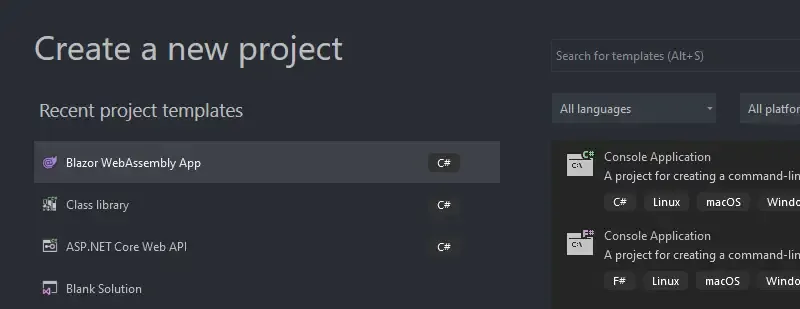
As mentioned earlier, let’s start off by creating a new Blazor WebAssembly App Project in Visual Studio 2019. Make sure you have the latest SDK of .NET installed.
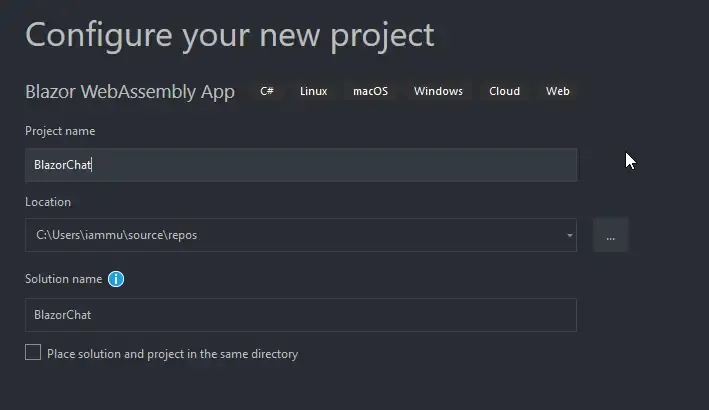
I am naming the application BlazorChat for obvious reasons :P
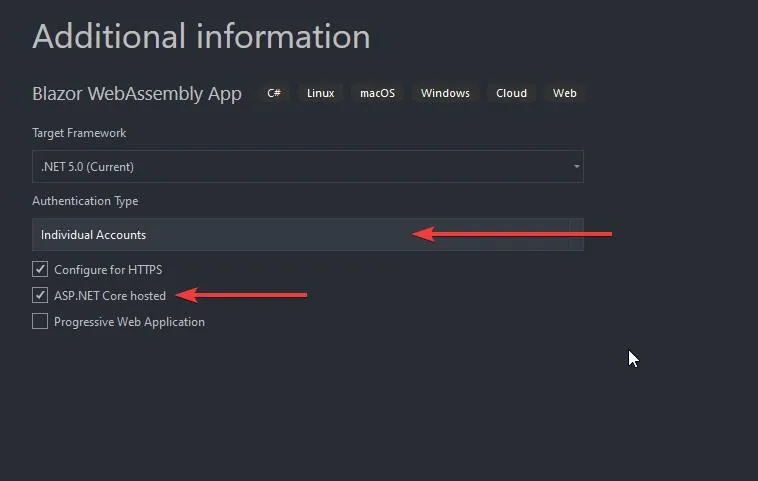
Make sure that you choose Individual Accounts for the Authentication Type so that Visual Studio can scaffold the code required for Login / Registration and Profile Management. I took this approach, so as to keep this implementation simple since our prime focus is building the Chat Application with Blazor.
Also, ensure that you have checked the ASP.NET Core Hosted Checkbox, as SignalR will need a Server Model. We will be dealing with the HttpClient also in this implementation to fetch and save chat records to our Local Database.
Once Visual Studio has created your new shiny Blazor Application, the first thing to always do is to update all the existing packages. For this, open up the Package Manager Console and run the following command.
update-packageIntegrating Mudblazor Components
Now, let’s add some Material Design to our application. MudBlazor is one of the Libraries that has come the closest to offer Material UI feel to Blazor Applications. I have used this awesome component Library in BlazorHero as well.
Let’s setup MudBlazor for Blazor. Open up the package manager console and make sure that you have set the BlazorChat.Client as the default project (as seen in the below screenshot). Run the following command to install the latest version of MudBlazor on to your application.
Install-Package MudBlazor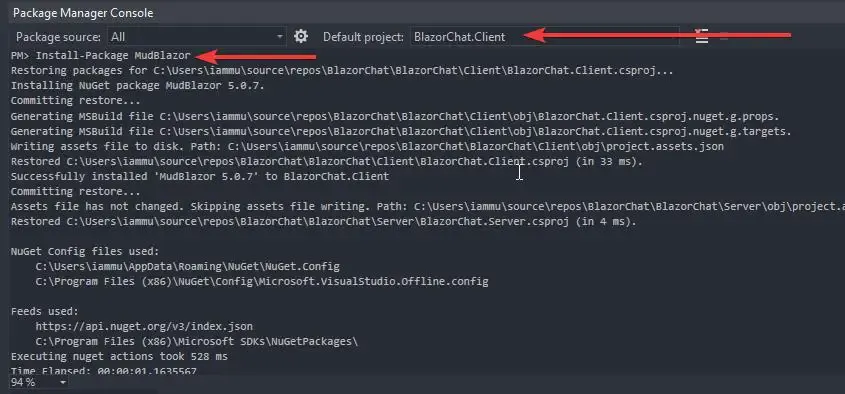
Once it is installed, open up the _Imports.razor file in the Client project under Pages folder, and add the following to the bottom of the file. This helps us to use MudBlazor components throughout the application without having to import the namespace into each and every component/page. We will be adding other interfaces/services to this razor component later in this guide as well.
@using MudBlazorI have put together some UI code throughout the guide to get you started with MudBlazor without wasting much time. We will try to build a Admin Dashboard UX with Navigation Bar (top) , Side Menu (sidebar) and the content at the middle. Get the idea, yeah?
Firstly, open up the index.html from the wwwroot folder of the BlazorChat.Client project. Replace the entire HTML with the code below. In simple words, what we did is to use MudBlazor Stylesheets and some of it’s js file instead of the default styles that we get out of the box with Blazor.
<!DOCTYPE html><html><head> <meta charset="utf-8" /> <meta name="viewport" content="width=device-width, initial-scale=1.0, maximum-scale=1.0, user-scalable=no" /> <title>Blazor Chat</title> <base href="/" /> <link href="https://fonts.googleapis.com/css?family=Roboto:300,400,500,700&display=swap" rel="stylesheet" /> <link href="_content/MudBlazor/MudBlazor.min.css" rel="stylesheet" /></head><body> <div id="app">Loading...</div> <div id="blazor-error-ui"> An unhandled error has occurred. <a href="" class="reload">Reload</a> <a class="dismiss">🗙</a> </div> <script src="_content/Microsoft.AspNetCore.Components.WebAssembly.Authentication/AuthenticationService.js"></script> <script src="_framework/blazor.webassembly.js"></script> <script src="_content/MudBlazor/MudBlazor.min.js"></script></body></html>